
Playlist setup · Apple TV
Set up your M3U playlist on Apple TV.
Add a playlist you already use, or follow the public iptv-org example below to get started.
Before you start
- Install Awesome IPTV on your Apple TV.
- Have a full M3U or M3U8 playlist URL, either from your provider or from the public example below. A webpage or a single video URL is different from a channel playlist.
- Connect your Apple TV to the internet. If you use a provider account, confirm that it is active.
Awesome IPTV does not supply channels or playlist links. Playback requires Playback Access; Apple shows your local price and any eligible introductory offer before purchase.
Have a server URL, username, and password instead? Follow the Xtream Codes guide.
A playlist to start with
Try it with iptv-org.
iptv-org is an independent community project that collects links to publicly available live TV streams. You can use its English-language playlist as a concrete M3U example, without an Xtream username or password.
- Source type
- M3U/M3U8
- Source name
- iptv-org English
- Select the full address to copy it. On a phone, press and hold the address.
- Open Your TV Sources in Awesome IPTV and select +.
- Choose M3U/M3U8, then enter the source name and playlist URL shown above.
- Select Add source, wait for import to finish, and select Done.
- Open iptv-org English, choose Live TV, and select a channel.
Prefer another language or country? Choose a link from iptv-org's playlist catalog. Its complete playlist is also available, but a smaller language or country playlist is a more manageable first import.
These are third-party streams: availability, regional access, and guide information vary. Awesome IPTV is not affiliated with iptv-org, and using this playlist does not change the player's Playback Access subscription requirement.
Add your playlist
Open your TV sources
Launch Awesome IPTV. On Your TV Sources, select the + button to open Add a source.
Choose M3U/M3U8
Change the source type from Xtream Codes to M3U/M3U8.
Name it and enter the full link
Give it a Source name you will recognize. In M3U URL, enter the complete playlist address exactly as supplied, including any query parameters. Check for spaces and typing mistakes.
Your playlist link may contain your login details. Keep it private and avoid including it in screenshots or support messages.
Select Add source
Keep the app open while it imports. When the import finishes successfully, select Done. Artwork and guide information may continue loading after the catalog is ready.
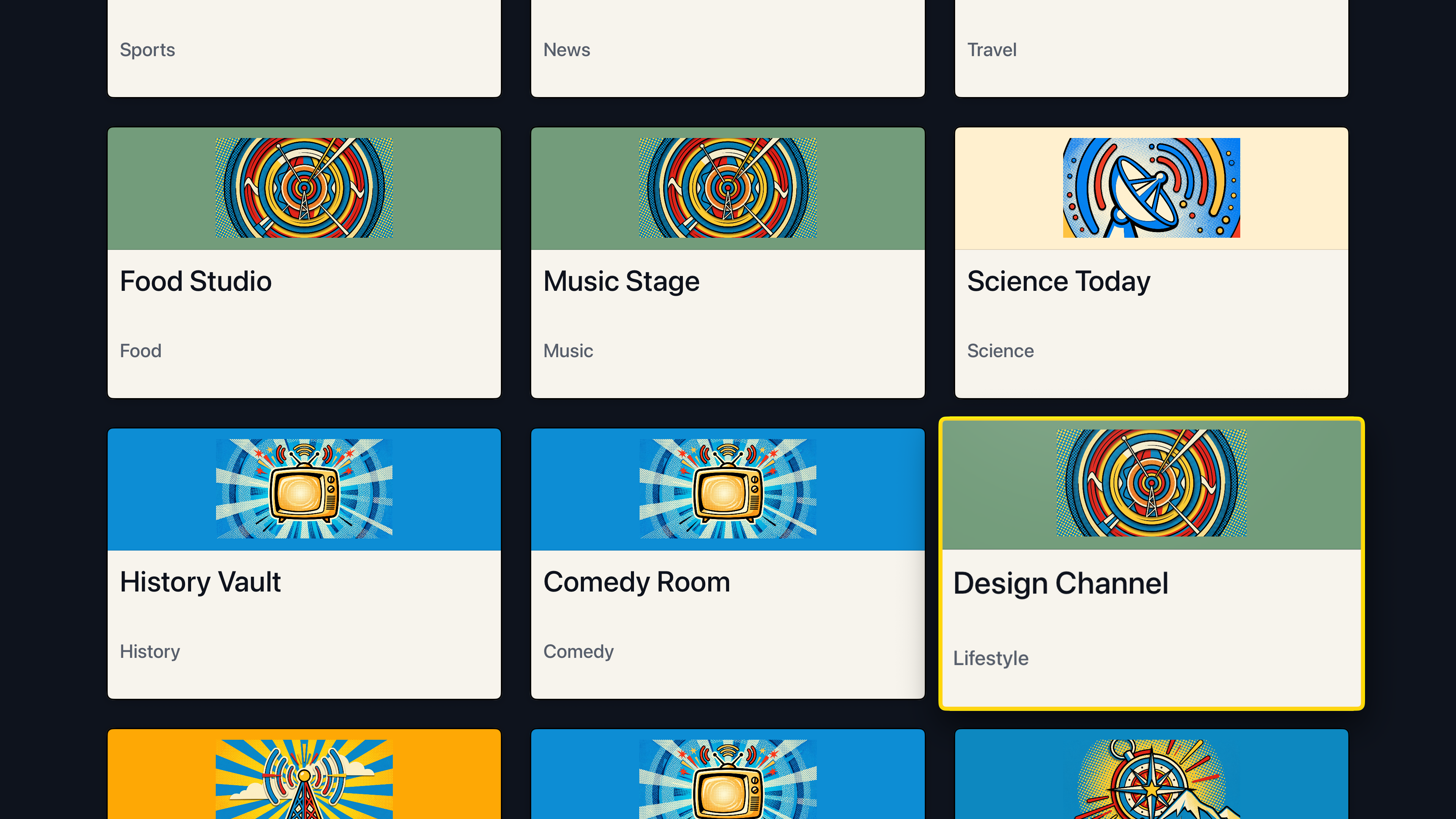
Open Live TV
Select the source you added, open Live TV, and choose a channel. If Apple presents a subscription screen, review its terms before continuing.
M3U sources provide the Live TV library in Awesome IPTV. Separate Movies and Series catalogs require a compatible Xtream source; an M3U import does not create those catalogs.
If something goes wrong
Add source is unavailable
Enter both a source name and the complete M3U URL. Confirm that M3U/M3U8 is selected.
The playlist will not import
Check the URL with your provider, including its spelling, port, and any account parameters. Confirm the account is active. A login webpage or an expired link will not import as a playlist.
Channels appear, but one will not play
The catalog can load even when a stream is unavailable. Try another channel, check your network, and ask the provider whether the affected stream is working or an account connection limit has been reached.
The guide or artwork is missing
Allow loading to finish. Guide data and channel artwork depend on your source. Ask the provider whether it supplies compatible guide information; importing channels does not guarantee a complete schedule.
Still stuck? Contact support with your app version, Apple TV software version, and the error you see. Do not send your private playlist URL.
Ready to watch?
Open your source whenever you return. Use search to find a channel and favorites to keep the ones you watch close.
Get Awesome IPTV